
Overview
On the storage page, you can manage files on Amazon S3, Google Cloud Storage, or S3-compatible storage (such as MinIO).
Management Operations
Object Storage Server Configuration
Open the storage settings from [System > General] and configure the following items according to your storage type.
Common Settings
Type: Storage type (Auto/S3/GCS)
Bucket: The bucket name to manage
S3 Settings
Endpoint: S3 endpoint (uses AWS default if blank)
Access Key: AWS access key
Secret Key: AWS secret key
Region: AWS region
Note
Amazon S3 and S3-compatible storage support comes from the fess-storage-s3 plugin, which is not part of the distribution. Install it from the System > Plugin page in the administration screen, or with bin/fess-setup install plugin fess-storage-s3. The “Auto” type also resolves to S3 when the endpoint is blank.
GCS Settings
Endpoint: GCS endpoint (uses Google Cloud default if blank)
Project ID: Google Cloud project ID
Credentials Path: Service account credentials JSON file path
Note
Google Cloud Storage support comes from the fess-storage-gcs plugin, which is not part of the distribution. Install it from the System > Plugin page in the administration screen, or with bin/fess-setup install plugin fess-storage-gcs.
MinIO (S3-compatible) Settings
Endpoint: MinIO server endpoint URL
Access Key: MinIO access key
Secret Key: MinIO secret key
Display Method
To open the object list page shown below, click [System > Storage] in the left menu.
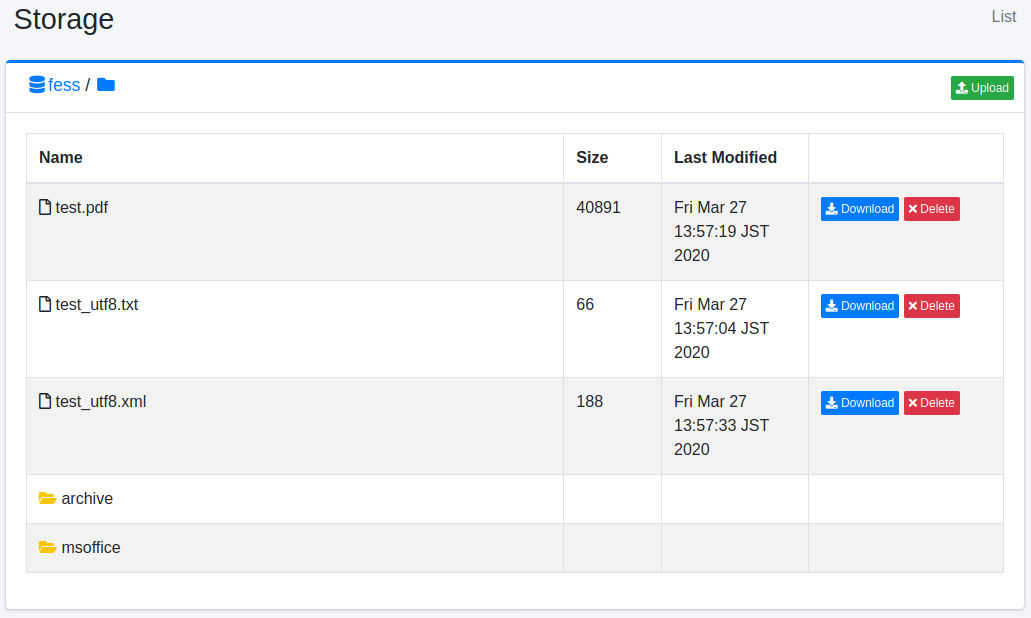
The file name of the object.
The size of the object.
The last modified date and time of the object.
Download
You can download the object by clicking the Download button.
Delete
You can delete the object by clicking the Delete button.
Upload
You can open the file upload window by clicking the File Upload button in the upper right.
Create Folder
You can open the folder creation window by clicking the Create Folder button to the right of the path display. Note that you cannot create empty folders.