
Label-Specified Search (Category Search)
By adding label information to categorize search target documents, you can perform filtered searches by specifying labels at search time. By using labels, for example, you can limit the search scope by department, site, or document type.
By registering labels in advance in the administration screen, label-based filtering becomes available on the search screen. Available labels can be selected from a dropdown menu at search time, and multiple labels can be selected; if multiple labels are selected, documents that have any of the selected labels become the search target. If no labels are registered, the label dropdown box will not be displayed.
Note
Since permissions can be set for labels, only the labels that the searching user is authorized to access are displayed in the dropdown. In addition, the labels displayed may differ depending on the virtual host or locale (language). Therefore, even if labels are registered, they may not appear in the dropdown for some users.
Labels are defined by specifying, as a regular expression against the URL path, which documents the label should be applied to. For information on how to register labels and their configuration items, see the Label Management Guide.
Usage
You can select label information when searching. Label information can be selected within the search options displayed by clicking the Options button.
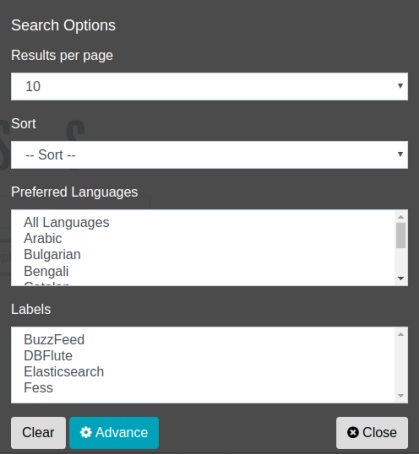
By creating an index with labels configured, you can search documents by their assigned labels. Searching without specifying a label performs a normal full search.
Labels are assigned to documents by matching the document’s URL against the paths configured for the label at crawl time, when the index is created. Therefore, if you add or change a label definition (the target paths or excluded paths), the change is not automatically applied to documents that have already been indexed. To apply the change, either crawl the target documents again, or run the “Label Updater” job registered in the scheduler to update the index.